
How to record your screen and webcam in Chrome
Recording your screen with your face in a corner is the easiest way to explain something: a tutorial, a bug report, feedback on a design or a lesson for students. Here’s how to do it for free in Google Chrome, with sound and in Full HD.
What you need
- Google Chrome 116 or later on Windows, macOS, Linux or ChromeOS.
- A webcam and a microphone. Built-in ones are fine.
- The free Framecap extension.
Step 1: Open Framecap and choose Screen + camera
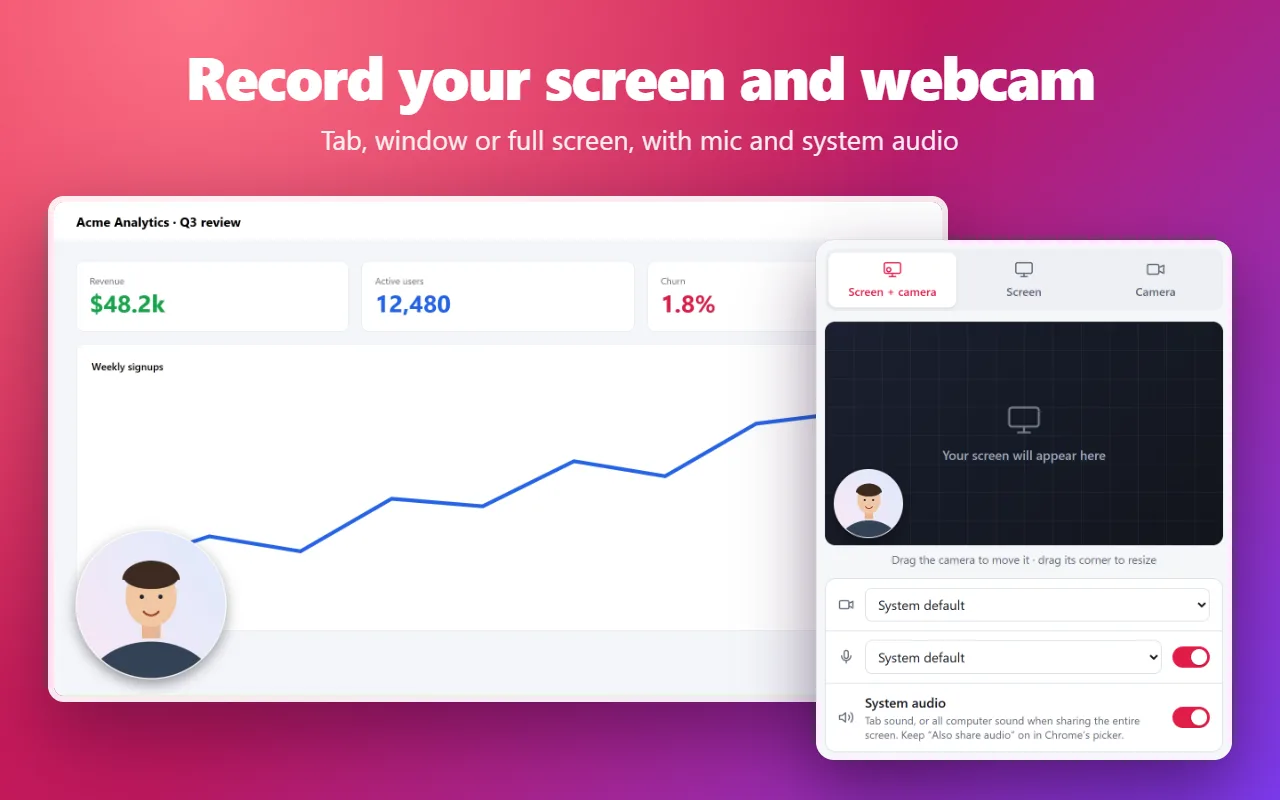
Click the Framecap icon in Chrome’s toolbar, or press Alt+Shift+V. A small Framecap window opens. Choose Screen + camera. The first time, Chrome asks to use your camera and microphone; click Allow.
Step 2: Place your webcam bubble
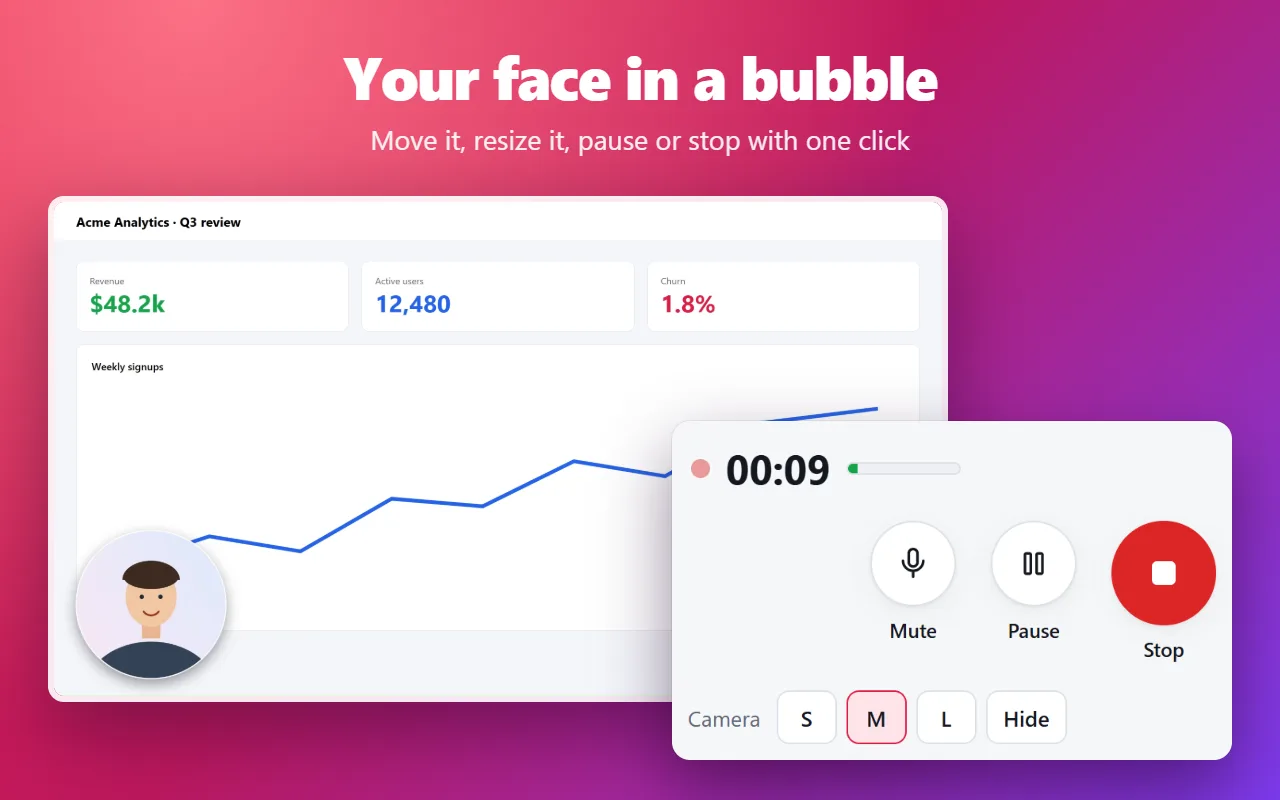
Your webcam appears as a round bubble on the preview. Drag it to the corner you want, and drag its corner handle to make it bigger or smaller. For a square look, open Settings and set Camera shape to Rounded square.
Step 3: Choose what to share and your audio
- Tab records one browser tab. It’s the best choice for web apps, slides and videos in the browser, and it can record the tab’s sound.
- Window records one app window, such as a code editor or a document.
- Entire screen records everything on one monitor.
Keep Microphone on to record your voice. Turn on System audio to also record the sound playing in the tab or on your computer.
Step 4: Start recording
Click Start recording, pick the tab, window or screen in Chrome’s picker, and click Share. After a short countdown, the Framecap window hides itself so it doesn’t appear in your video. To move or resize your webcam while recording, click the Framecap icon to bring the window back.
Step 5: Stop and download your video
Press Alt+Shift+S, click Stop, or use Chrome’s Stop sharing bar. The Framecap window comes back with your video. Give it a name and click Download to save it as an MP4.
Want to cut a slow start or a messy ending? Click Trim under the video, drag the two handles to the part you want to keep and click Save trimmed copy.
Tips for a better recording
- Leave Quality on Auto: Framecap picks the sharpest quality your computer records smoothly, up to Full HD 1080p. For fast motion like scrolling or games, choose 1080p at 60 fps.
- Wear headphones when you record system audio and your microphone together, to avoid echo.
- Pause with Alt+Shift+K instead of stopping, so you end up with one clean video.